Beat Screen Tearing in Games with Pro Techniques
Fixing Screen Tearing in Games: A Comprehensive Guide Are you tired of experiencing screen tearing while gaming? Do you want to enjoy a seamless and immersive gaming experience?
December 16, 2025 · 4 min read
Ex-competitive player turned writer. If a game has a ranked mode, I've probably grinded it. I write about what's worth your sweat.
Fixing Screen Tearing in Games: A Comprehensive Guide
Are you tired of experiencing screen tearing while gaming? Do you want to enjoy a seamless and immersive gaming experience? Look no further! In this guide, we'll walk you through the causes of screen tearing and provide step-by-step solutions to fix it.Causes of Screen Tearing
Screen tearing occurs when the graphics processing unit (GPU) renders frames at a different rate than the display's refresh rate. This mismatch causes the display to show multiple frames at once, resulting in a torn or fragmented image.How to Fix Screen Tearing
Fortunately, fixing screen tearing is relatively straightforward. Here are some steps to help you eliminate screen tearing:Step 1: Check Your Graphics Card
Ensure that your graphics card is capable of handling the game's graphics requirements. If your graphics card is outdated or underpowered, consider upgrading to a more powerful model.Step 2: Adjust Your Graphics Settings
Tweak your graphics settings to optimize performance. Try reducing the resolution, turning off anti-aliasing, or decreasing the texture quality.Step 3: Enable VSync
VSync (vertical sync) synchronizes the frame rate with the display's refresh rate, eliminating screen tearing. To enable VSync, go to your graphics card settings and toggle the VSync option.Step 4: Use G-Sync or FreeSync
If you have an NVIDIA or AMD graphics card, consider using G-Sync or FreeSync technology. These technologies synchronize the frame rate with the display's refresh rate, eliminating screen tearing.Step 5: Update Your Graphics Drivers
Ensure that your graphics drivers are up-to-date, as outdated drivers can cause screen tearing. Visit your graphics card manufacturer's website to download the latest drivers.Step 6: Adjust Your Display Settings
Adjust your display settings to optimize performance. Try reducing the refresh rate or turning off features like motion blur.Step 7: Consider Upgrading Your Display
If you're using an older display, consider upgrading to a newer model with a higher refresh rate. This can help eliminate screen tearing and provide a smoother gaming experience.Game-Specific Solutions
Some games have specific solutions to screen tearing. For example:Super Mario World
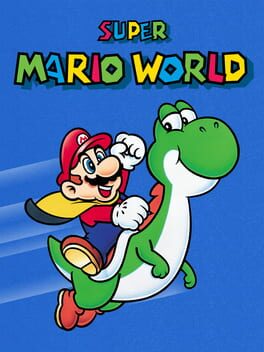
Super Mario World
Nintendo EAD · Nintendo
Nov 21, 1990
A 2D platformer and first entry on the SNES in the Super Mario franchise, Super Mario World follows Mario as he attempts to defeat Bowser's underli…
The Legend of Zelda: A Link to the Past
The Legend of Zelda: A Link to the Past
Nintendo EAD · St. GIGA
Nov 21, 1991
Venture back to Hyrule and an age of magic and heroes. The predecessors of Link and Zelda face monsters on the march when a menacing magician takes…
Super Metroid
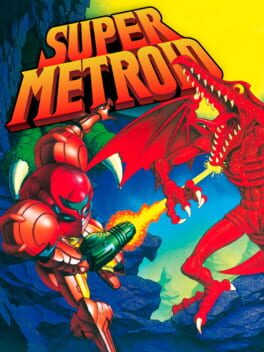
Super Metroid
Nintendo R&D1 · Nintendo
Mar 19, 1994
The Space Pirates, merciless agents of the evil Mother Brain, have stolen the last Metroid from a research station, and once again Mother Brain thr…
Conclusion
Screen tearing can be frustrating, but it's relatively easy to fix. By following these steps and adjusting your graphics settings, you can eliminate screen tearing and enjoy a smoother gaming experience.Super Mario World
Platforms: Super Nintendo Entertainment System
Genres: Platformer, Adventure
Rating: 92%
The Legend of Zelda: A Link to the Past
Platforms: Super Nintendo Entertainment System
Genres: Action, Adventure
Rating: 95%
Super Metroid
Platforms: Super Nintendo Entertainment System
Genres: Action, Adventure
Rating: 90%